
Background
In one of my recent projects, we were building a Reusable Nintex Workflow and one of the steps was to update managed metadata field. To our surprise we found that even Nintex 2013 Workflow does not have any action to update the managed metadata. There are workaround by using webservice and Term Guid but that was not an ideal solution for us.
Some of our requirements
- We want to update one or many managed metadata fields in the workflow. The value of the field will be determined by the outcomes of other workflow steps.
- We cannot hardcode Term GUID in the workflow. We have automated ways to deploy our workflow (through scripts) and it goes through few environments (Dev, System Integration, UAT, Prod-Support) before it goes to production. In each environment the Term GUID will be different.
- Easy to use. Same methodology will be used in different workflows in different projects. So it must be easy to use, intuitive option.
- Storing user credential was not an option.
Solution: Nintex Workflow Custom Action
What can be more easier way than to drag an action into the workflow designer and configure the field name and Managed Metadata value? So I develop a Nintex Workflow Custom Action, “Taxonomy Update”. Below I am providing the ready to use solution and instruction to use the action. Hope others might find it useful.
Deploying Nintex Workflow Custom Action (3 Steps)
- Download the Cassini.Workflows.wsp
This is free to use for personal or business projects. The solution has been deployed and tested in enterprise level. I have not posted the source code yet (something I might do in future).
- Deploy the wsp in SharePoint farm.
You can use the following Powershell commands to deploy the wsp.
Add-SPSolution Cassini.Workflows.wsp
Install-SPSolution –Identity Cassini.Workflows.wsp -GACDeployment
- Activate the WebApplication feature (Cassini.NW.CustomActions)
Go to Central Admin > Application Management> Manage web applications> Select the Web application you want to use the Custom Action> Click Manage feature form the Ribbon > Activate Cassini.NW.CustomActions feature.
Using/Configuring Taxonomy Update Action
- Create a new Nintex workflow or open an existing Nintex workflow.
- Add “Taxonomy Update”
In the left ToolBox, you will see a new option “Cassini Custom Actions”. If you click that you will find the newly installed action “Taxonomy Update”. Drag the action into the canvas.

- Configure
Double click on the newly added action to configure. In the Taxonomy Field Name enter the name of the field/column in that document library/list that you want to update. In the Field Value enter the full path of the term separated by pipe (|).
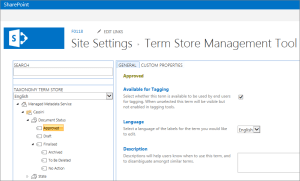
 So if you are updating a managed metadata field called “Document Status”, the value of Taxonomy Field Name will be Document Status.
 If you are setting the value to a term named “Approved” that resides in Taxonomy Term Store “Managed Metadata Service”, Term Group “Cassini” and Term Set “Document Status”, then the full path will be: “Managed Metadata Service|Cassini|Document Status|Approved”.You can also select sub term e.g. “Managed Metadata Service|Cassini|Document Status|Finalised|Archived”.
The solution package can be found here Cassini.Workflows.zip
Hope this helps!


 Anupam Ranku