Office 365 Developer Bootcamp (Microsoft) – Melbourne

The Global Office 365 Developer Bootcamp is a free, one-day training event led by Microsoft MVPs with support from Microsoft and local community leaders. The bootcamps will provide hands-on labs for deep learning, and a comprehensive view of all key technologies and products on the Office 365 platform. Developers can apply these learnings to their products or solutions to achieve more right away.

Melbourne is hosting the Global Office 365 developer bootcamp with track dedicated to developers. You are free to attend topics all around Office 365 extensibility.

Technologies covered: Microsoft Graph, SharePoint Framework, Microsoft Teams, Office Add-ins, Connectors and Actionable Messages, and more.

To be successful in this workshop, you should have a general understanding of Office 365, SharePoint, Microsoft Teams and an ability to code in C# or JavaScript.

Lab Details can be found here:
http://ranku.site/melbbootcamp2018/
Event details: http://aka.ms/O365DevBootcamp

Slides are made available here:

Global Office 365 Developer Bootcamp – Melbourne

Lab 0: Prepare Your Dev Environment

npm install -g yo gulp
npm install -g @microsoft/generator-sharepoint

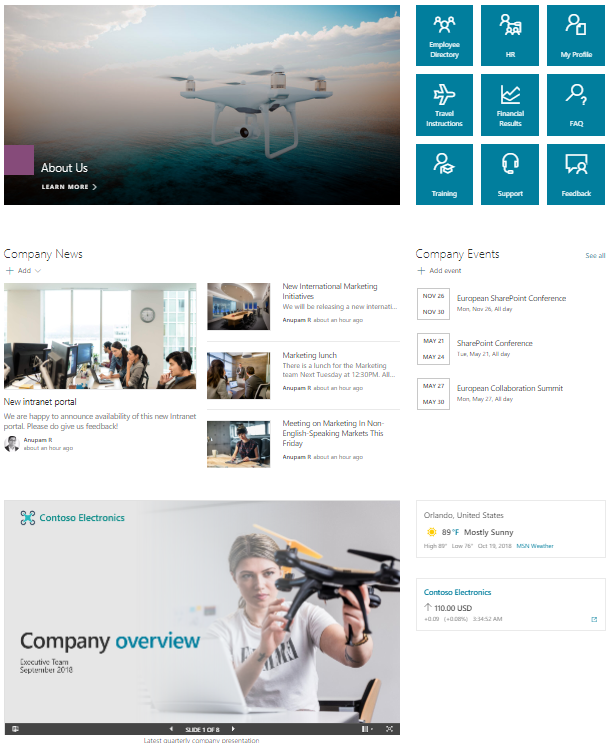
Lab 01: SP-Starter-Kit

Connect-PnPOnline https://.sharepoint.com
Apply-PnPProvisioningHierarchy -Path starterkit.pnp -Parameters @{“SiteUrlPrefix”=”pnpdemo”}

Lab 02: SPFx with Graph API

npm i
code .

  • Modify the code as needed

gulp build
gulp bundle –ship
gulp package-solution –ship

  • Upload to AppCatalog
  • Add the App in a site Collection and add the WebPart on a page


Lab 03: Form, Flow, List

  • Create a Form that takes feedback submission anonymously
  • Create a List with the similar columns
  • Create a Flow that inserts an item into the list every time someone submits a form
  • What can you do more?

Lab 04: List Column Formatter

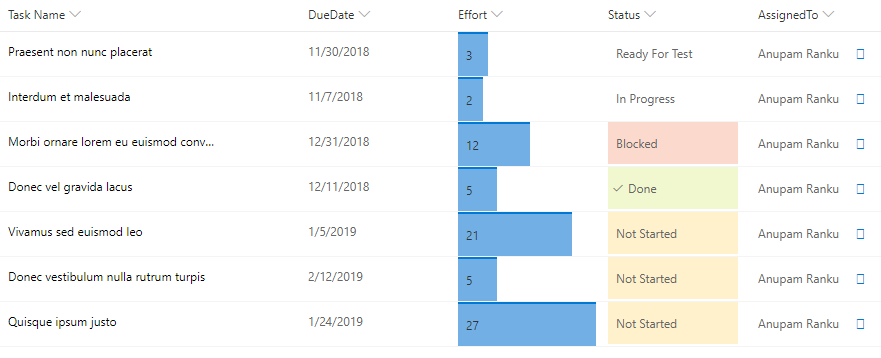
  • Create a list with 5 columns as per the screenshot below
  • Effort
    • Number column (minimum value: 0, maximum value: 28)
    • Effort click on the column header > Columns Settings > Format this column> Enter the following JSON and click save.

https://gist.github.com/AnupamRanku/fd7e10b16d6af416a91514953efaa4ab.js

  • Status
    • Choice Column with following options:
      • Not Started
      • In Progress
      • Blocked
      • Ready For Test
      • Done

https://gist.github.com/AnupamRanku/15a68bdd9735ef23f8f4264fe3a56ed7.js

  • AssignedTo
    • People Column

https://gist.github.com/AnupamRanku/38ecb59e1a604eaee1b37760cfb29d7b.js

Lab Optional  (Attendee asked to have a hands-on PowerApp Demo):

  • Click the following link for a step by step Power App demo
  • Replicate the app in your own environment (ask one of the speakers for help)

https://resources.techcommunity.microsoft.com/demos/MSCustomSharePointLists/

Resources